10. FBX Files
- Both rigid body and human body data can be exported to FBX in Edit Mode. The exported FBX can then be imported into animation software such as MotionBuilder and Unreal Engine (UE).
- To load motion capture data with MarkerSet in Edit Mode, click File -> Export FBX File. In the Export FBX File window, you can specify the MarkerSet name to export. On the right side of the window, you can select "Export Skeletons, " "Insert MB T-Pose, " "Export Named Points, " and "Export VMarker" to export the FBX file.
- Select 'Insert MB T-Pose' and 'Export Skeleton' to export the FBX file. The exported FBX file will include one frame of the standard T-Pose. Choosing to insert MB T-Pose will add a frame of MotionBuilder's standard T-Pose to the exported FBX file.
- When exporting an FBX file, interpolation and frame sampling will be performed on the original data based on the target frame rate set by the user to generate animation data corresponding to the specified frame rate and complete the export. Under the default configuration, the export will be conducted at the original frame rate.
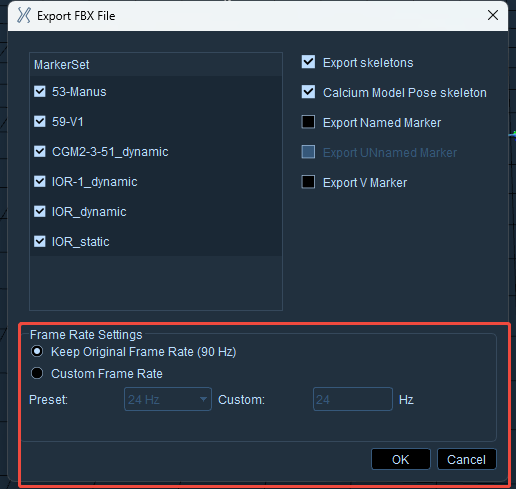
13.6.1
Note: The custom frame rate shall not exceed the original frame rate range.