Tec Gihan
1. Tec Gihan Device Connection
Function Registration
Note: .NET Framework 4.8 must be installed before registration.
- Go to the XINGYING software installation directory, right-click and create a new text document.
- Paste the complete batch code below into the document:
@echo off
chcp 65001 >nul
echo Registering C# COM component...
echo Please right-click and run as administrator!
echo.

REM Check if running as administrator
net session >nul 2>&1
if %errorLevel% NEQ 0 (
    echo Error: Please run as administrator!
    pause
    exit /b 1
)

REM Path to .NET 4.x x64 regasm.exe
set REGASM_PATH="%SystemRoot%\Microsoft.NET\Framework64\v4.0.30319\regasm.exe"

REM Check if regasm.exe exists
if not exist %REGASM_PATH% (
    echo Error: regasm.exe not found. Please check .NET Framework installation.
    pause
    exit /b 1
)

REM Check if the DLL exists
set DLL_PATH="%~dp0Fp_csharp_Wrapper.dll"
if not exist %DLL_PATH% (
    echo Error: Fp_csharp_Wrapper.dll not found in the current directory!
    echo Current directory: %cd%
    echo Expected path: %~dp0Fp_csharp_Wrapper.dll
    pause
    exit /b 1
)

REM Register the DLL
%REGASM_PATH% /codebase %DLL_PATH%

if %errorLevel% EQU 0 (
    echo.
    echo Registration successful!
) else (
    echo.
    echo Registration failed with error code: %errorLevel%
)

pause
- Click [File] → [Save As]:
- File name: Register.bat
- Encoding: ANSI
- Save as type: All Files
- After saving, right-click the file and run Register.bat as administrator to complete the COM component registration.
Device Connection
- Connect the receiver device cable to the corresponding SIG.IN port of the force plate.
- Connect the sync receiver cable to the TRIG.IN port of the force plate, then plug the white output end of the audio sync cable into the sync receiver cable port.
- Plug the other end of the receiver's USB cable into the computer.
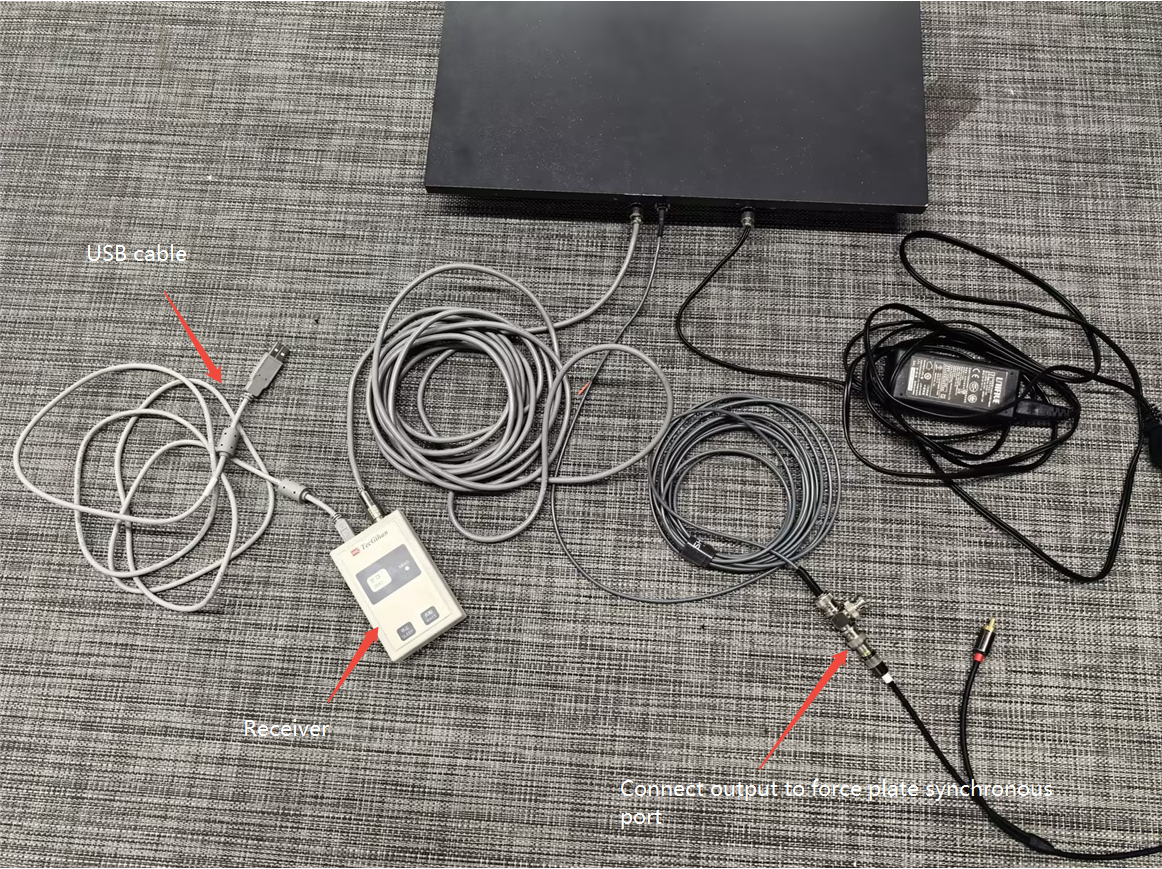
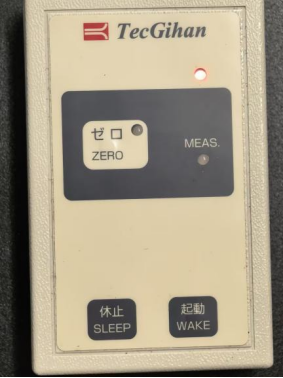
- Turn on the power. After the red light turns on, wait a few seconds, press the start button, release it after the light goes out, and wait for the green light to turn on.
2. Software Usage
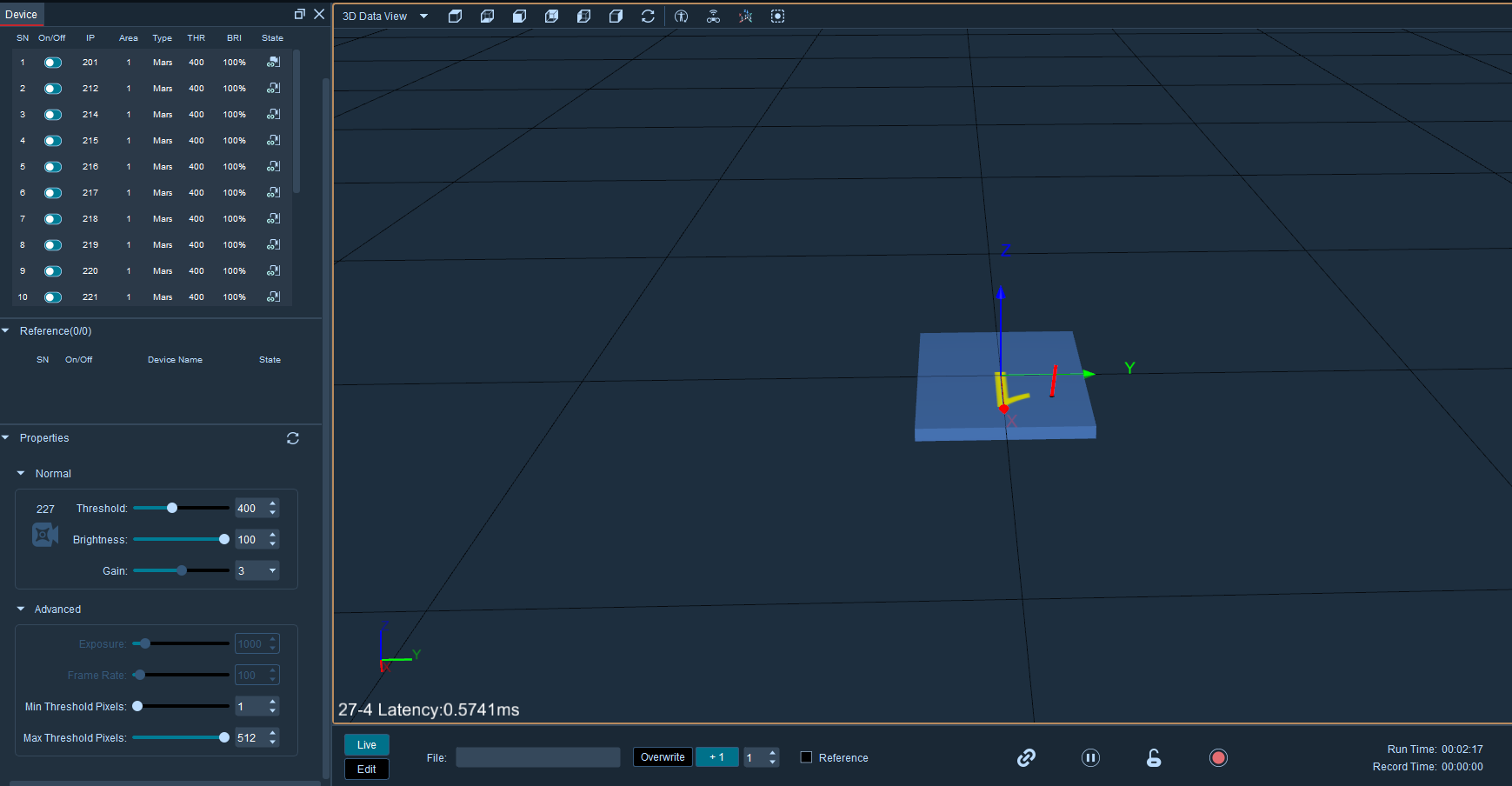
- Open the software, connect the camera, set the frame rate to 100, and click Play.
- Click Third-Party Device, select Force Plate Configuration, click "+" to add a force plate, select the added force plate and switch it to the Tec Gihan type. Configure the force plate parameters on the right, set the frame rate multiplier to 10, check Tec Gihan Force Plate (Digital), and close the force plate configuration window.
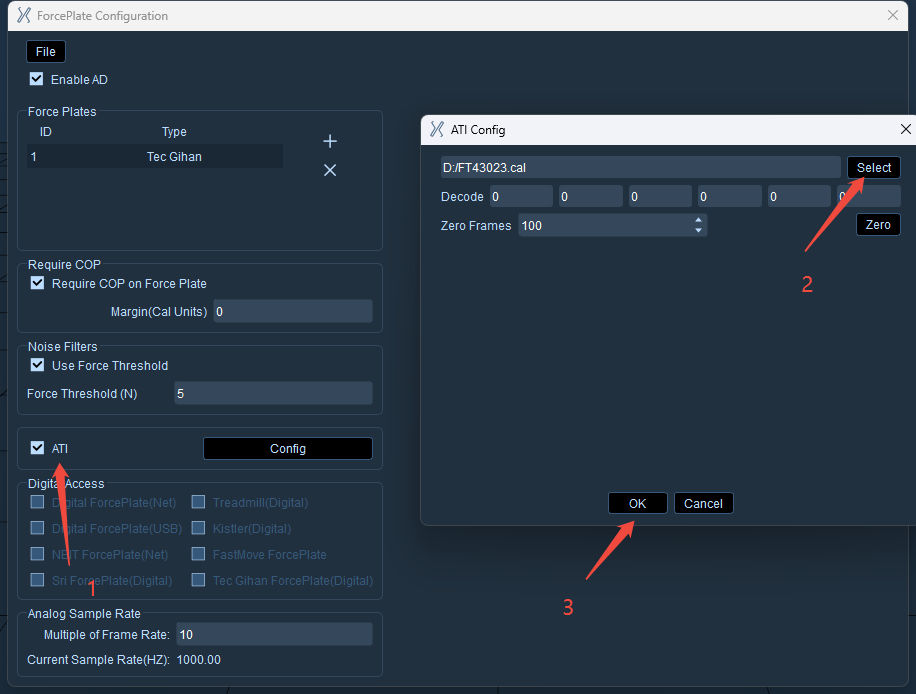
- Once the force plate is loaded, the corresponding force data can be read.