Bertec
danger
Force plates and EMG devices with AD analog mode cannot be used interchangeably with USB-based digital force plates.
Force plates and EMG devices with AD analog mode cannot be used interchangeably with network digital force plates.
Force plates and EMG devices with AD analog mode cannot be used interchangeably with digital EMG systems.
Connecting a Bertec Force Plate via Analog Acquisition
- XINGYING software supports connecting to the Bertec force platform via NI6218/6225.
- The AD connection method for the force platform requires trigger synchronization using a camera lens.
- Analog connection procedure for the Bertec force plate:
- On the short side of the Bertec force platform, there will be a connector. Connect the two ends of the matching connecting cable to the force platform and the amplifier respectively. Connect the analog signal lines on the NI AD acquisition card to the other interface of the amplifier.
- Prepare a 3.5mm to dual-RCA audio cable (the 3.5mm end is a thin-diameter cable). Use it to connect the main camera of the NOKOV motion capture system to the NI AD acquisition card. Insert the 3.5mm end of the synchronization cable into the AUX port behind the main camera, and connect the white RCA connector of the synchronization cable to the jumper through the adapter and then to the NI AD acquisition card.
- Find the following signal lines in the analog signal cable - Fx-CH1, Fy-CH2, Fz-CH3, Mx-CH4, My-CH5, Mz-CH6, GND. Connect the signal lines to the NI AD acquisition card correctly. After all the cables are connected, connect the NI AD acquisition card to the computer through the matching USB cable. Power on both the amplifier and the AD acquisition card.
- Install the NI AD acquisition card driver. The driver installation program can be obtained from the NOKOV engineer.
- Power on the amplifier. The indicator light on the amplifier turns on. Press the Zero button of the signal amplifier to zero the signal.
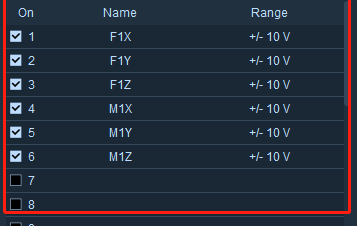
- Open XINGYING, click on the third-party device menu bar at the top of the software - Channel Configuration. In the Channel Configuration window, configure the analog signal channel of Bertec. Right-click on the list and select "Bertec - FP1". You can also configure the range of each channel according to the output range of the test bench. Double-click on the "Range" column in the list. In the drop-down box, you can select ranges such as +/-10mV, +/-10V, etc. After completing the channel configuration, click the "Select" button at the top left to select all analog channels. Click again to unselect all channels.
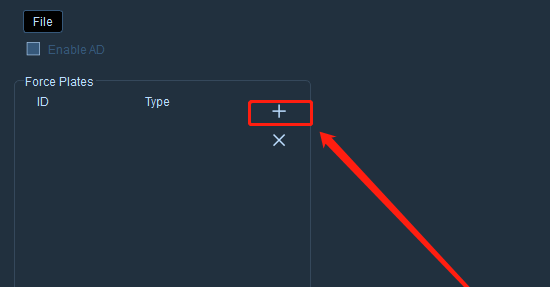
- Click on the third-party device menu bar at the top of the software, select the "Force Platform Parameter Settings" option, then click the "+" button in the force platform parameter settings window. In the dropdown list of force platform specifications on the right, select Bertec (AD).
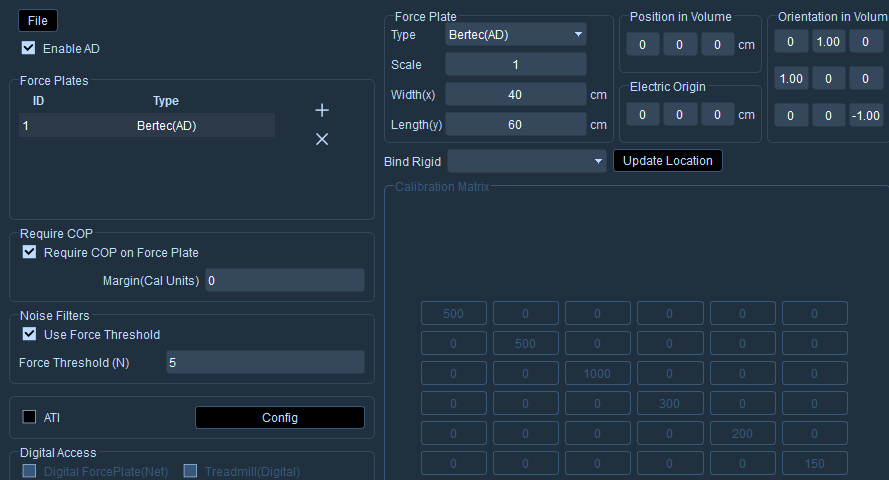
- Select the name of the force platform, choose the corresponding type of force platform, and set the parameters of the Bertec force platform on the right side: the specification of the force platform, its position in space, direction, and calibration matrix;
- After configuring the simulation channels, the AD simulated force platform needs to manually check the "simulated connection" option. When using the AD simulated force platform, if no channels are added and the "simulated connection" option is directly checked, the software will pop up a window indicating "the number of simulated channels and the number of force platforms do not match". At this time, the simulation channels need to be configured first before checking the "simulated connection" option.
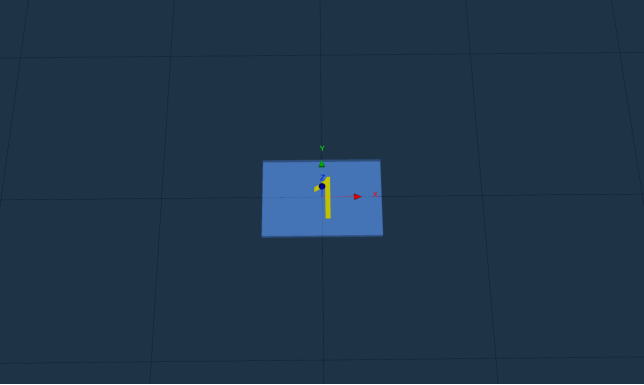
- Close the settings window. On the 3D view, the Bertec force platform will be displayed. On the force platform, the position of the force and the serial number of the testing platform will be shown in real time.
Accessing the Bertec force platform via USB connection
- Connection steps for the Digital Bertec Force Platform
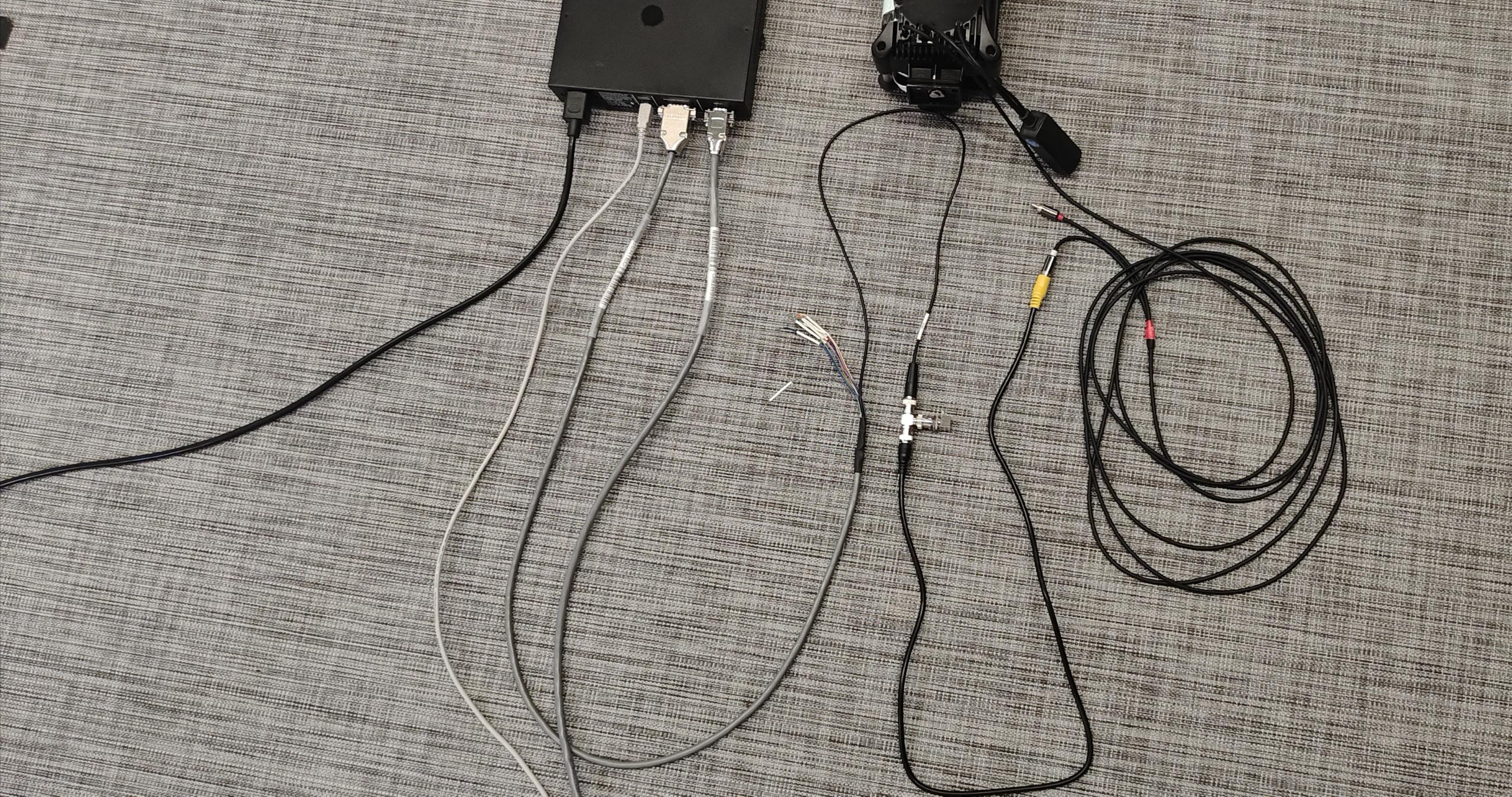
- On the short side of the Bertec force platform, there will be a connector. Connect the two ends of the matching connection cable to the force platform and the amplifier respectively. Connect the analog signal lines on the NI AD acquisition card to the other interface of the amplifier.
- Connect the matching white USB cable to the computer and the amplifier.
- Prepare a 3.5mm to dual-RCA audio cable (the 3.5mm end is a thin diameter cable). Insert the 3.5mm end of the synchronization cable into the AUX port behind the main lens. Use the adapter to connect the white RCA connector of the synchronization cable to the jumper.
- Power on the amplifier. The indicator light on the amplifier will turn on. Press the Zero button on the signal amplifier to zero the signal.
- Open the XINGYING software, click on the menu bar of the third-party device, select "Force Platform Configuration", click "+", in the dropdown list of the force platform specifications on the right side, choose "Bertec (Digital)", in the "Other Configuration" section at the bottom of the force platform parameter setting window, check the "Digital Force Platform (USB)" option, set the length and width in the "Force Platform Specifications" section based on the size of the force platform; "The direction in space, the position in space" parameters can use the default parameters of the system or be modified according to your needs, and the serial number of the force platform will be displayed at the bottom of the window.
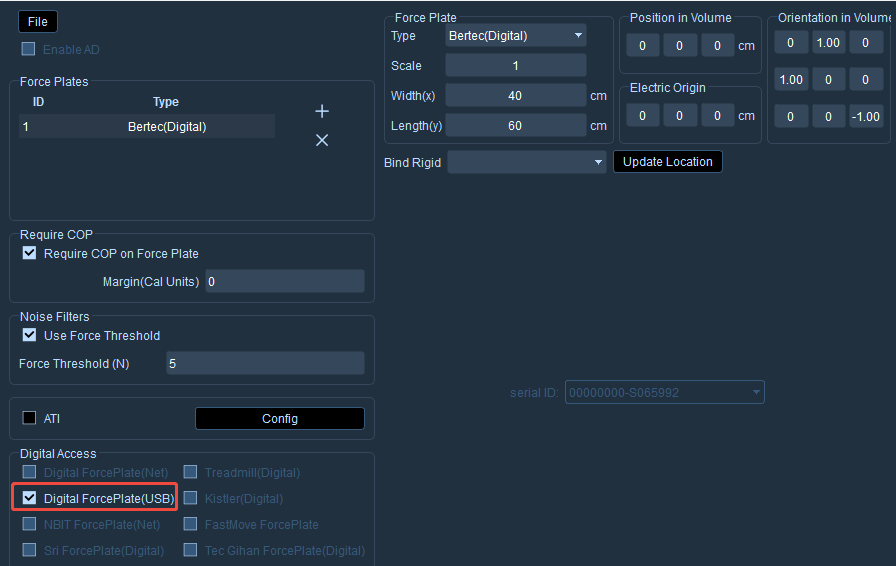
- Close the parameter setting window of the force measuring platform. The digital Bertec force measuring platform has been added to the 3D view and can now be used.