Hybrid Camera User Manual
Hardware Configuration and Connection
Hardware Configuration
- The hybrid Camera must be used with 10-gigabit network equipment.
| Switch | Network card | Network cable |
|---|---|---|
| 10G Switch | PCIe 10GbE Network Card | CAT6 |
Hardware Connection and Parameter Setting
- camera and Switch: Connect hybrid camera to the 10G switch using CAT6 network cables.
- A single 10G switch can connect up to 3 Hybrid camera simultaneously.
- Computer and Switch: Connect the computer to the switch with Category 6 network cable.
- Multi-switch cascading: Use Category 6 network cables to complete the cascading connection between multiple switches.
- Lens Angles and Parameters: After fixing the lenses, adjust their angles to ensure that the entire site can be captured by all lenses. Set the aperture to maximum brightness, adjust the lens focal length according to the distance of the scene, and tune the exposure time based on the actual application scenario.
Software Settings and Usage
Basic Software Settings
- Software Installation: It is required to install the software "XINGYING".
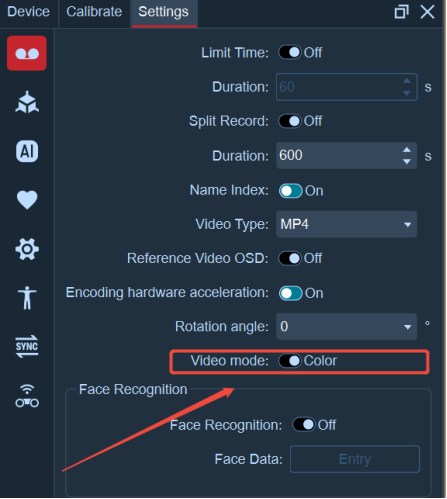
- Camera Mode: This camera supports two operating modes: • Black and White Mode: Motion Capture Mode, with the indicator light showing red • Color Mode: Video Mode, indicator light is green
- IP and Default Status: The camera is automatically obtains an IP address upon power-on and enters the motion capture (black and white) mode by default.
- Mode Switching Method: ① Open the software and connect the camera ② Go to 【Settings】 → 【Recording Settings】 ③ Pause playback first, then toggle the video mode switch ④ After switching is completed, click play, and the indicator light changes synchronously with the mode.
- Indicator lights of the camera in different modes:
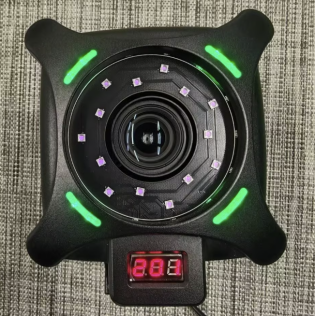
Color (Video Mode)
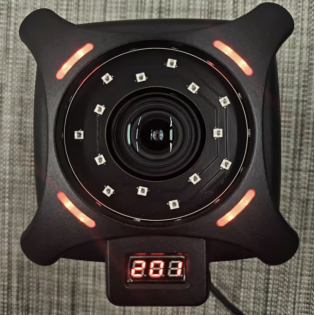
Black and White (Motion Capture Mode)
- Reference Video OSD: Enable "Reference Video OSD" in recording settings. In color mode, you can view the camera IP in the upper-left corner of the screen, and check the resolution and frame rate in the lower-right corner.
Functions of Different Modes
-
Motion Capture (Black & White) Mode:
1)Switch to black-and-white mode. The 2D view hybrid Camera can extract 2D points; if 2D points cannot be extracted, appropriately adjust the camera threshold and exposure.
2)In black-and-white mode, hybrid camera can be calibrated together with ordinary optical camera. The calibration steps can refer to the instructions in "Calibration → Calibration Categories". After completing TL calibration, hybrid camera will also participate in the reconstruction of 3D points.
-
Usage of Video (Color) Mode:
1)Switch to color mode, and you can view the color image of the hybrid Camera by opening the reference video.
2)Reference Video Overlay: After calibration is completed in black-and-white mode, create an asset and switch to color mode. There is no need to perform reference video calibration again; the TL calibration results can be directly reused. Assets, unnamed points, skins and other content in the 3D view will be overlaid and displayed on the reference video view.
3)The hybrid Camera does not participate in 3D point reconstruction in color mode.
MP4 format conversion
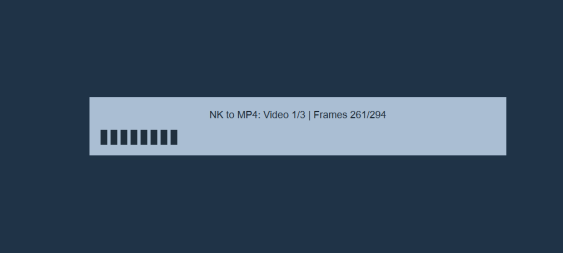
- When recording data with reference videos in real-time mode, the software will pop up a prompt asking whether to convert to MP4 during post-processing loading.
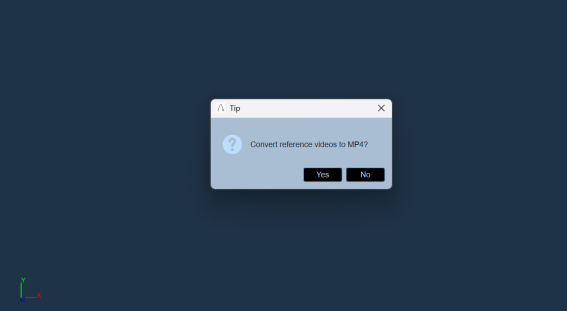
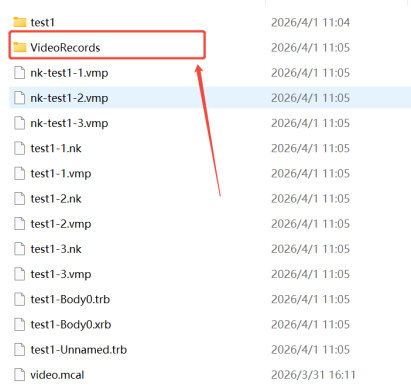
- Select "Yes": The system will automatically convert all reference videos in the loaded data to MP4 format via NK and save them to the "VideoRecords" folder under the data directory.
- Select "No": Load data directly. You can only view the reference videos within the software, and there will be no MP4 format files in the data folder.
Set compression level
- Switch the video mode to color mode, enable the reference video view, and open Settings -- Recording Settings.
- Expand the JPEG compression level dropdown list
- In the list, you can set the image quality of the reference video for hybrid Camera, and the quality levels are: Smooth, Balanced, High Definition, Ultra High Definition
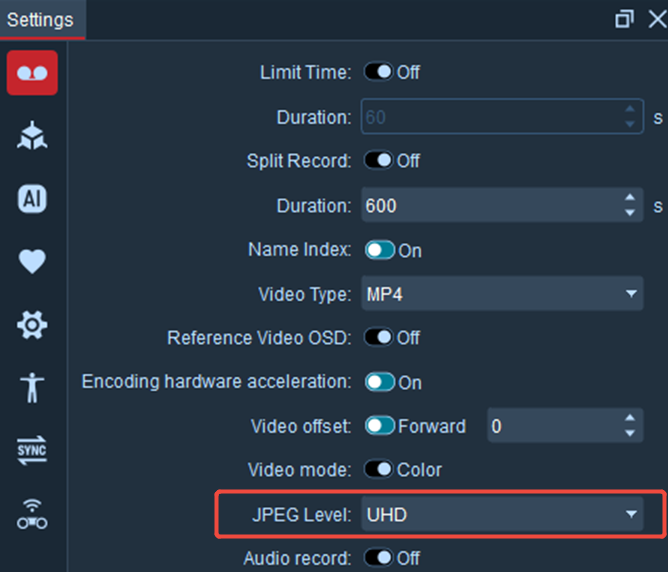
- It is recommended to set the compression level to ultra-high definition to obtain high-quality images.