(Ⅰ) VRPN Protocol Method
ROS version: noetic, Ubuntu version: 20.04.
Ⅰ. VRPN Download and Installation
- Enter "sudo apt search vrpn" in the Ubuntu terminal to query the VRPN version that can be installed for the current Ubuntu version.
.png)
Query VRPN Version
- If the package manager can find the corresponding VRPN version, enter the following command in the terminal to install the VRPN library. In this example, the installed ROS version is noetic, and ros-noetic-vrpn is used.
sudo apt install ros-noetic-vrpn
 (1).png)
apt Installation
- If the package manager does not find the corresponding VRPN version, use the following commands to download the source code and install the VRPN library. This operation is applicable to different ROS versions.
git clone --recurse-submodules https://github.com/vrpn/vrpn.git
# build and install
cd vrpn/
mkdir build
cd build
cmake ../
sudo make install
.png)
git clone
.png)
cmake build
.png)
- Save the quatlibConfig.cmake file and VRPNConfig.cmake in the corresponding folder, and use the following commands to create the corresponding directory (replace "noetic" according to the installed ROS version).
sudo mkdir -p /opt/ros/noetic/share/vrpn/cmake/
sudo mkdir -p /opt/ros/noetic/share/quatlib/cmake/
.png)
Create Folder
.png)
.png)
Ⅱ. vrpn_client_ros Download, Installation and Network Configuration
There are two installation methods: software source installation and source code compilation.
(Ⅰ) Software Source Installation
- First install the relevant dependencies.
# First install the dependencies
sudo apt install -y
     ros-noetic-geometry-msgs
     ros-noetic-tf2-ros
     ros-noetic-roscpp
     ros-noetic-roslaunch
     ros-noetic-roslint
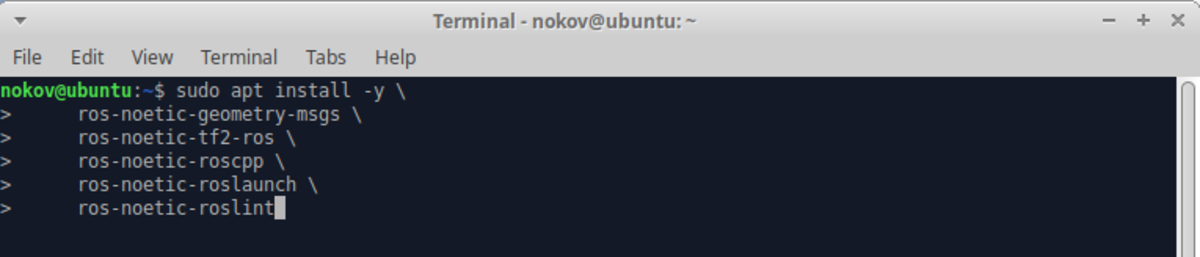
Install Dependencies
- If apt can find the corresponding vrpn-client-ros, directly use the following command to install. In this example, the installed ROS version is noetic, and ros-noetic-vrpn-client-ros is used.
sudo apt install ros-noetic-vrpn-client-ros
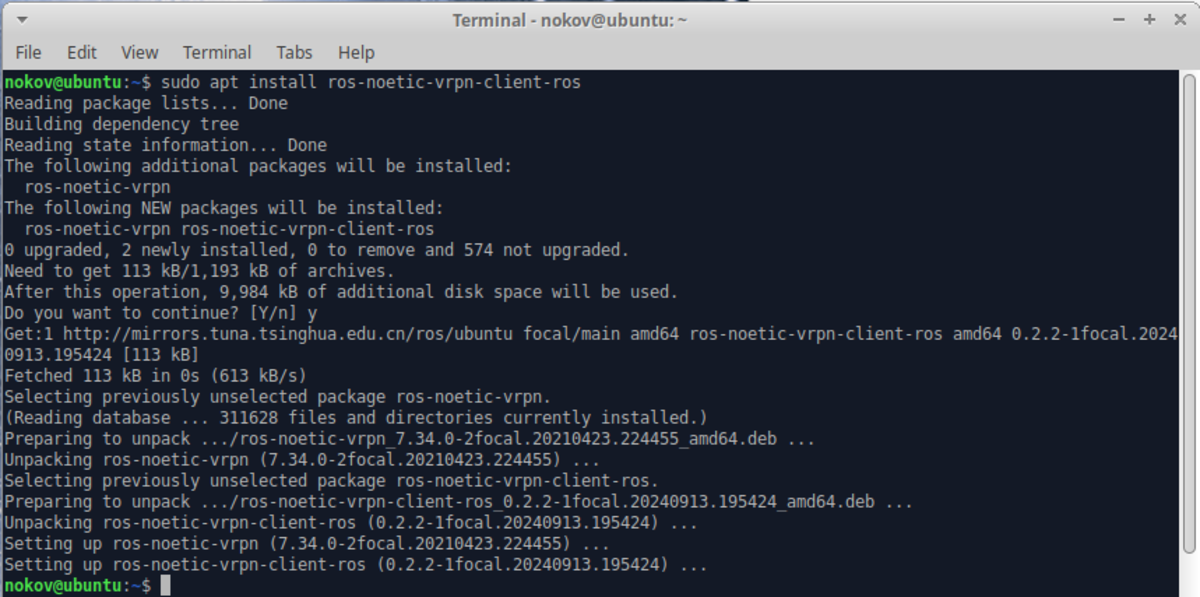
Install ros-noetic-vrpn-client-ros
- Run the following commands in sequence to compile and install vrpn_client_ros. This operation is applicable to different ROS versions. First install
# git clone vrpn_client_ros
mkdir -p ~/catkin_vr/src
cd ~/catkin_vr/src/
git clone https://github.com/ros-drivers/vrpn_client_ros
cd ~/catkin_vr/catkin_make
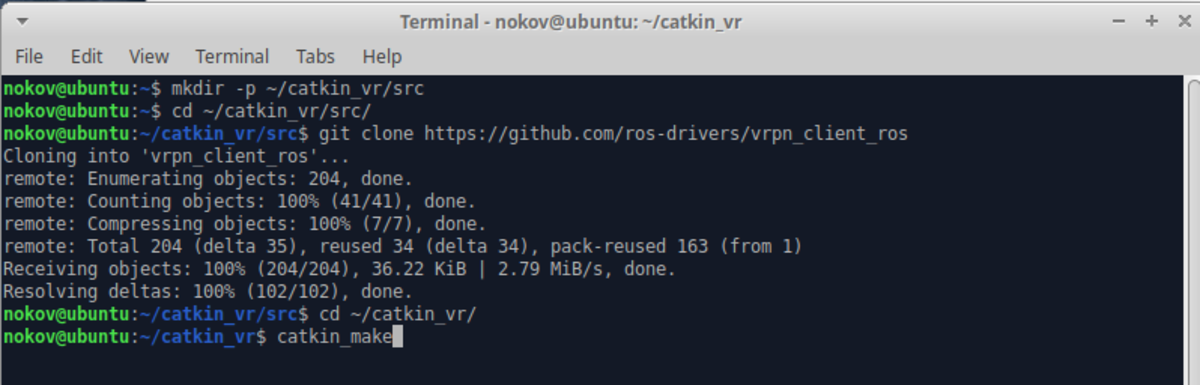
catkin_make
(Ⅱ) Source Code Installation
- Use the following code to create a catkin workspace, pull the source code and compile
# clone vrpn_client_ros
mkdir -p ~/catkin_vr/src
cd ~/catkin_vr/src/
git clone https://github.com/ros-drivers/vrpn_client_ros
# catkin_make
cd ~/catkin_vr/
catkin_make
.png)
catkin_make
- Use the following commands to configure the environment and load the environment in this terminal. (Skip this step if using apt to install vrpn_client_ros)
source ~/catkin_vr/devel/setup.bash
echo 'source ~/catkin_vr/devel/setup.bash' >> ~/.bashrc
.png)
Write to bashrc
Ⅲ. Test Network
- When starting vrpn_client-ros, note that the IP address setting must be correct, and it must be on the same network segment as the XINGYING software host and able to ping. Please close the computer's firewall. Refer to the following commands, and replace the network card name with the local network card.
ifconfig ens33
sudo ufw disable
ping -c 4 10.1.1.198
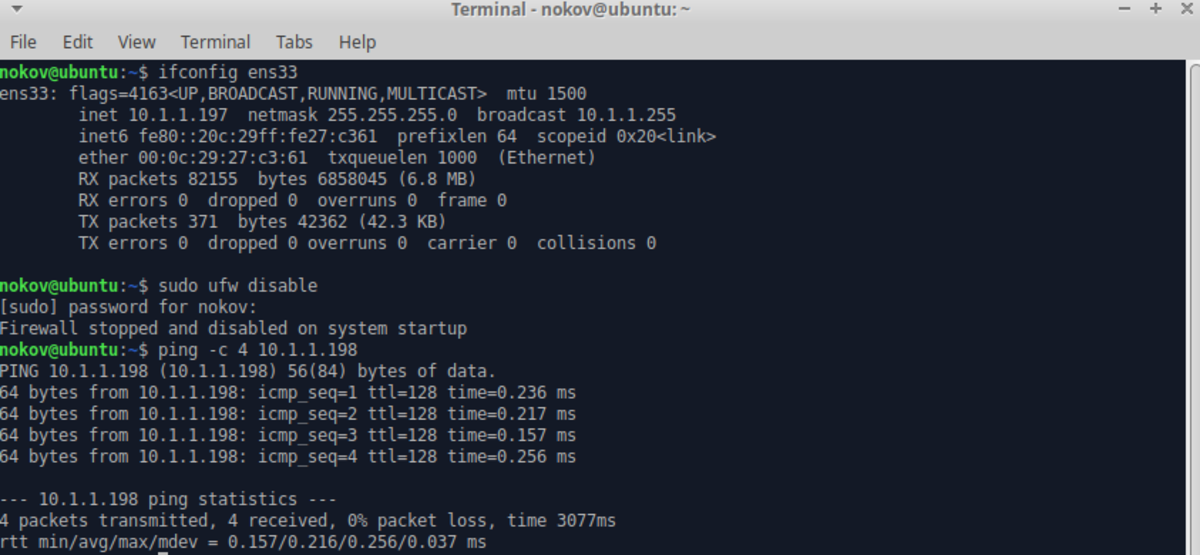
Check Network Configuration
Ⅳ. Run vrpn_client_ros Node
- Enter the following command: "roslaunch vrpn_client_ros sample.launch server:=10.1.1.198" and press Enter. If the three lines "Connection established", "Found new sender: Tracker2", and "Creating new tracker Tracker2" are printed, it means the connection is successful. "Tracker2" represents the name of the Markerset in XINGYING software.
roslaunch vrpn_client_ros sample.launch server:=10.1.1.198
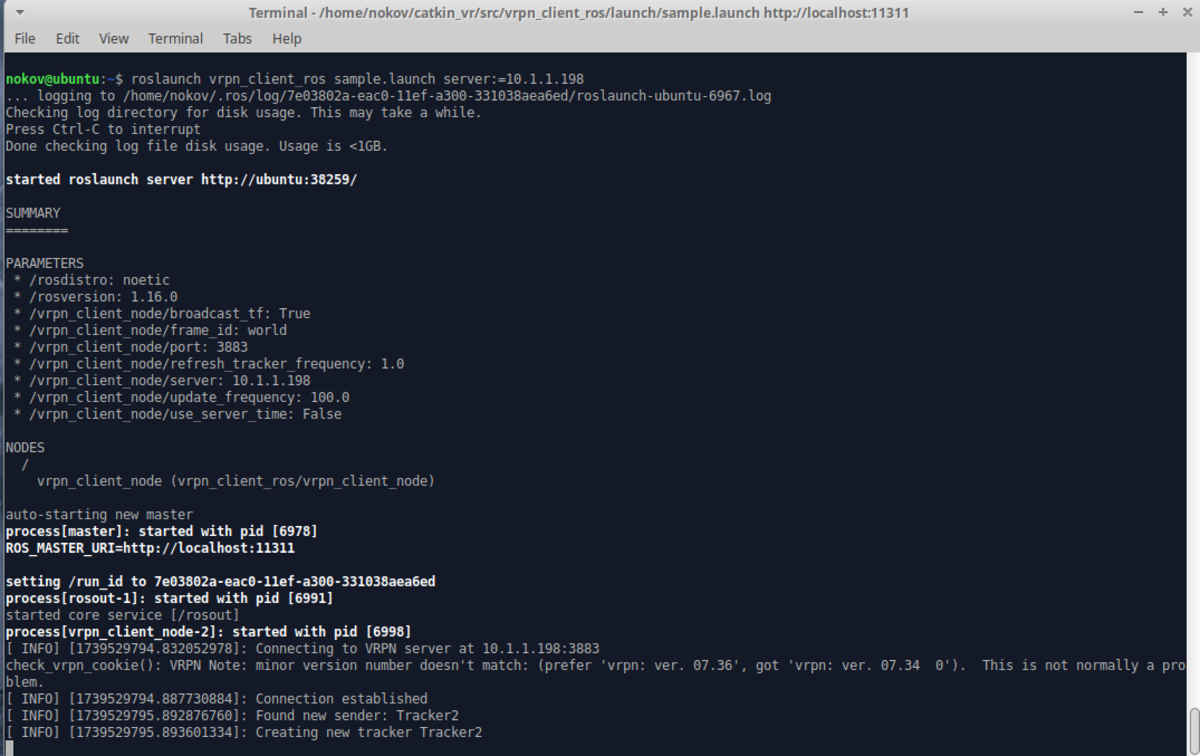
Run vrpn_client_ros Node
- Use CTRL+ALT+T to open a new terminal and view topic topics. Enter the command "rostopic list" to see the topic "/vrpn_client_node/Tracker2/pose". "Tracker2" represents the name of the Markerset in XINGYING software.
rostopic list

ROS Topic List
- Enter the command "rostopic echo /vrpn_client_node/Tracker2/pose" and press Enter to see the received data. "Tracker2" represents the name of the Markerset in XINGYING software.
rostopic echo /vrpn_client_node/Tracker2/pose
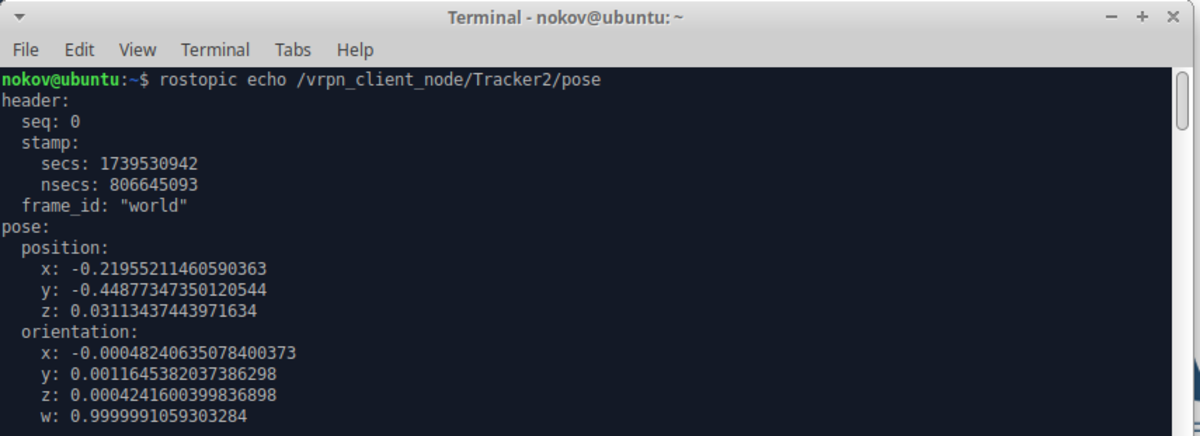
Print Tracker2/pose Topic