Noitom
Software Installation and Calibration
info
Note
1、Noitom Glove Software Installation and Usage Reference Noitom Official Help Documentation
https://support.noitom.com.cn/s/customer-manual/doc/v30-EzJtKcGVaG
Network configuration
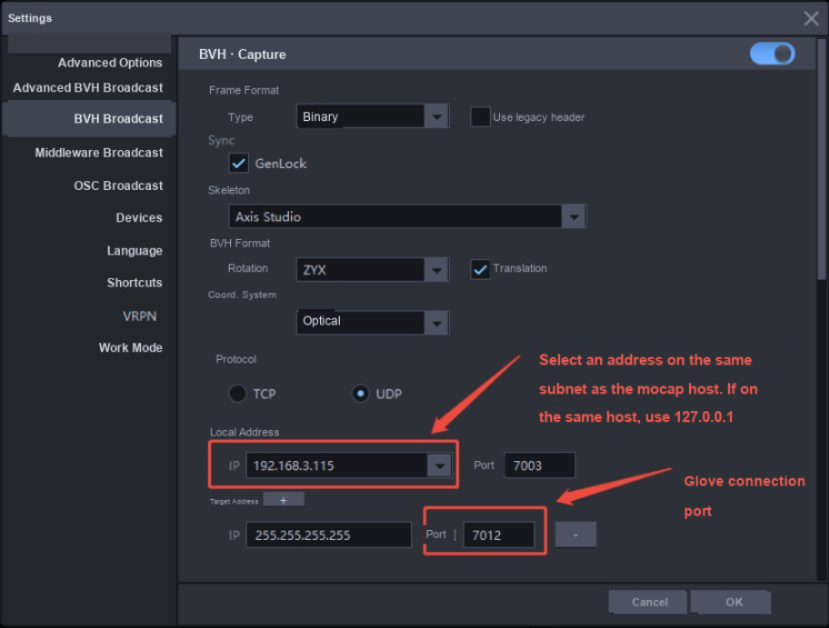
- Enable real-time communication, select Settings -> BVH Data Broadcast -> Enable BVH Capture. Check the local address and target address with port 7012. For LAN cross-host communication, the local address must be in the same network segment as the motion capture host. Here, assume motion capture computer A (IP: 192.168.3.113) connects wirelessly to Noitom AxisStudio client host B (IP: 192.168.3.115). In this case, the local address needs to be changed to 192.168.3.115.
XINGYING Configuration
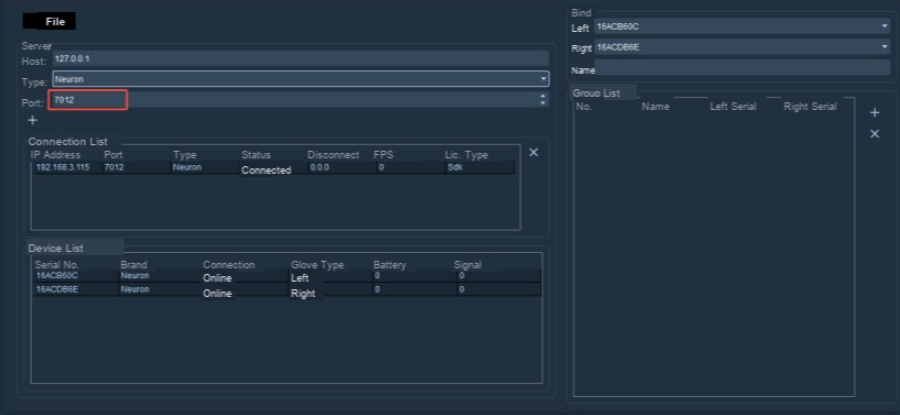
- Third-party Devices -> Glove Management, select type Neuron, configure the port to match the port in the target address of the glove client BVH-Capture. The default value here is 7012. Click Add Connection, and then bind the glove.
Human body creation
- Switch to the 3D view, then bring the model onto the stage. Click Freeze and verify whether the point count is correct. Drag to select the points, right-click the mouse, click Create Human Dropdown, and select the "Baseline+Toe+Hand,Headband(53) model". Save the default attributes. If multiple gloves are available, pull down the number list and select the desired number name, then click Create. (Note: When creating glove markers, maintain the T-Pose stance until model creation is complete.) After successful creation, the finished model can be viewed in the 3D view. Unfreeze it to use the model.