VRTRIX
Software installation
- Please install the glove software before using the VRTRIX gloves.

Glove connection
- Insert the USB dongle of the left and right gloves into the computer's USB port.
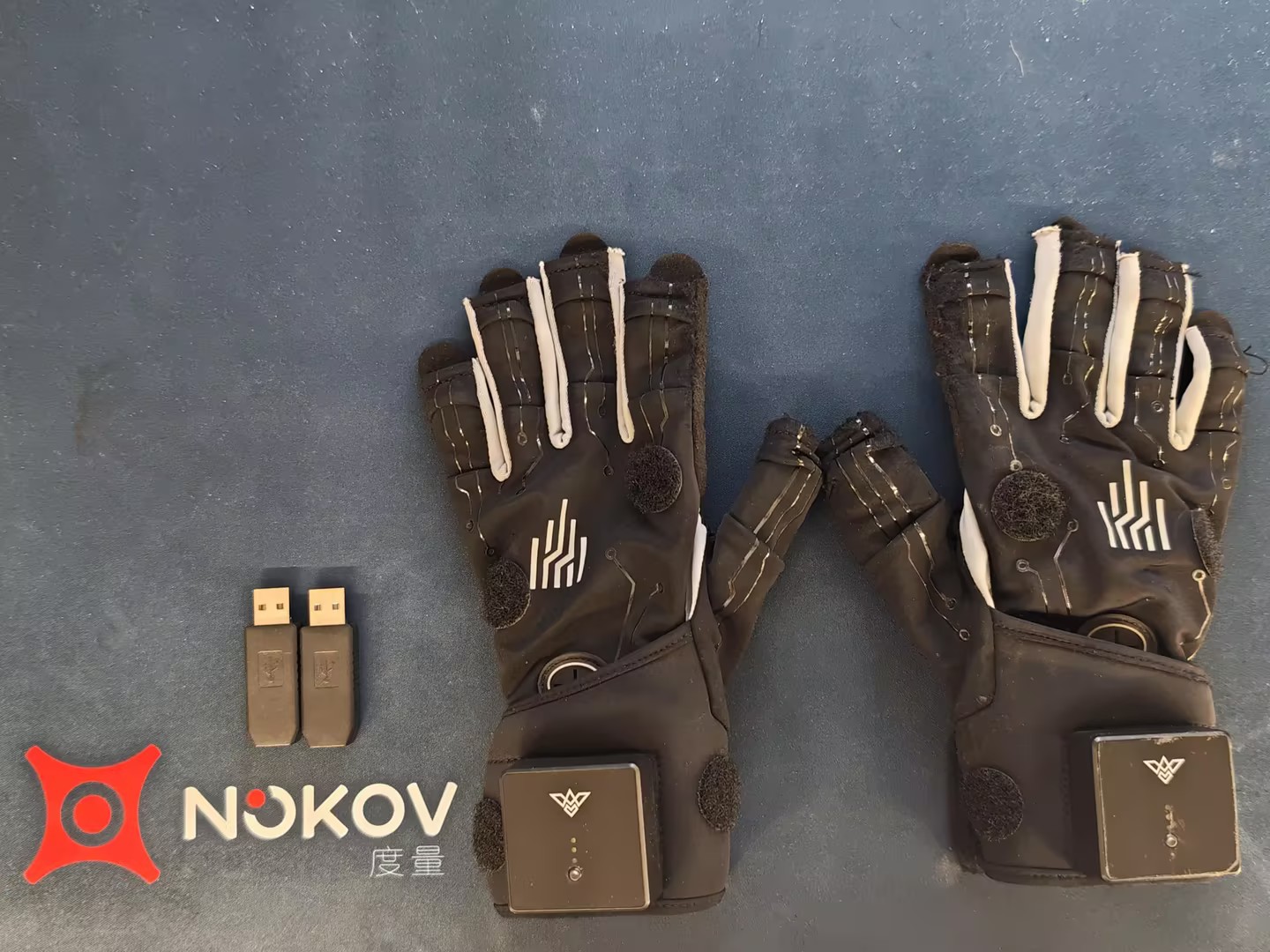
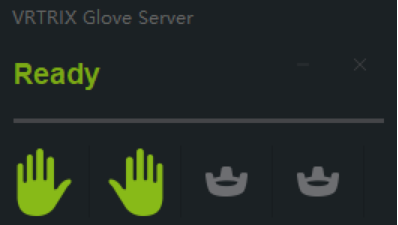
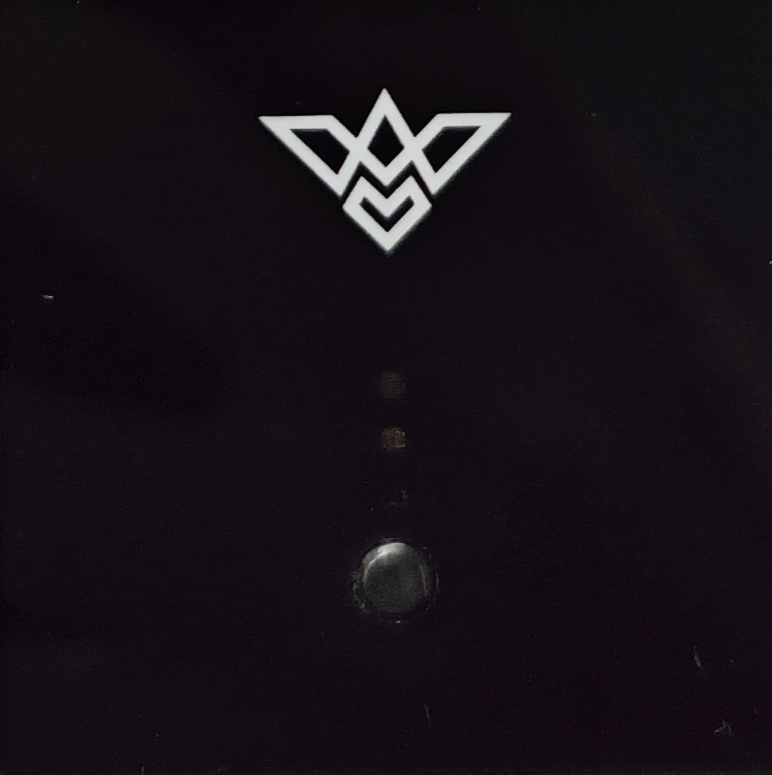
- Start the VRTRIXGloveServer software. Press the black button on the glove briefly to turn it on. After the glove is powered on, it will automatically pair the left and right hands. Once the data glove server shows "Ready", it indicates that the glove has been successfully connected. At this point, the indicator light on the glove will change from blue to green, and the glove icon on the server will become constantly illuminated.
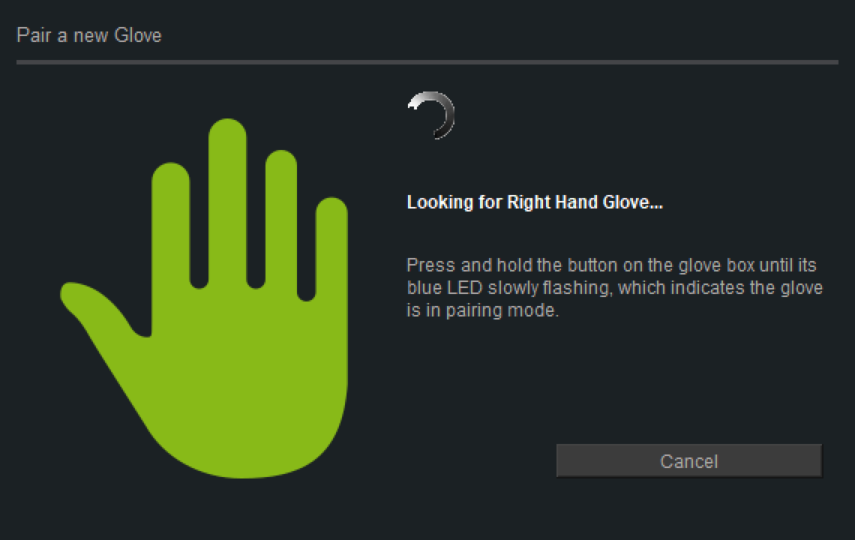
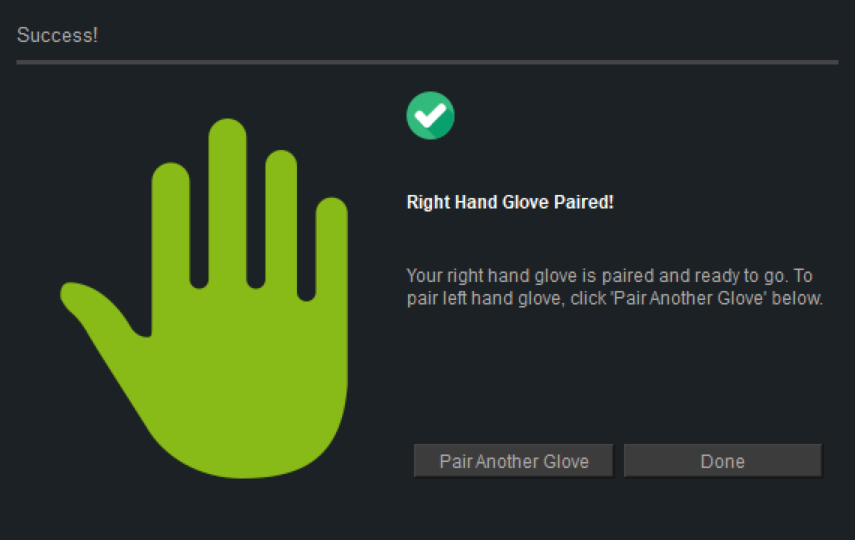
- When the gloves fail to automatically connect, the glove icon on the server will keep flashing. Select the unconnected glove on the server, right-click and choose "Pair Left/Right Hand Gloves"
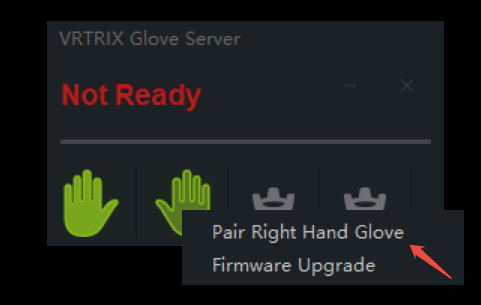
- Follow the instructions to make the matches. Once the matching is complete, you can then match the other glove.
Glove settings
-
Right-click above the VRTRIX data glove server, then click the "Display 3D View" function to enter the 3D view and connect the glove. You can then view the effect of the glove in the 3D view. Press the Alt+F4 combination key to close the 3D view of the data glove.
-
After clicking the "Connnect" button in the upper left corner of the data glove 3D view, you can view the real-time effect of the data glove.
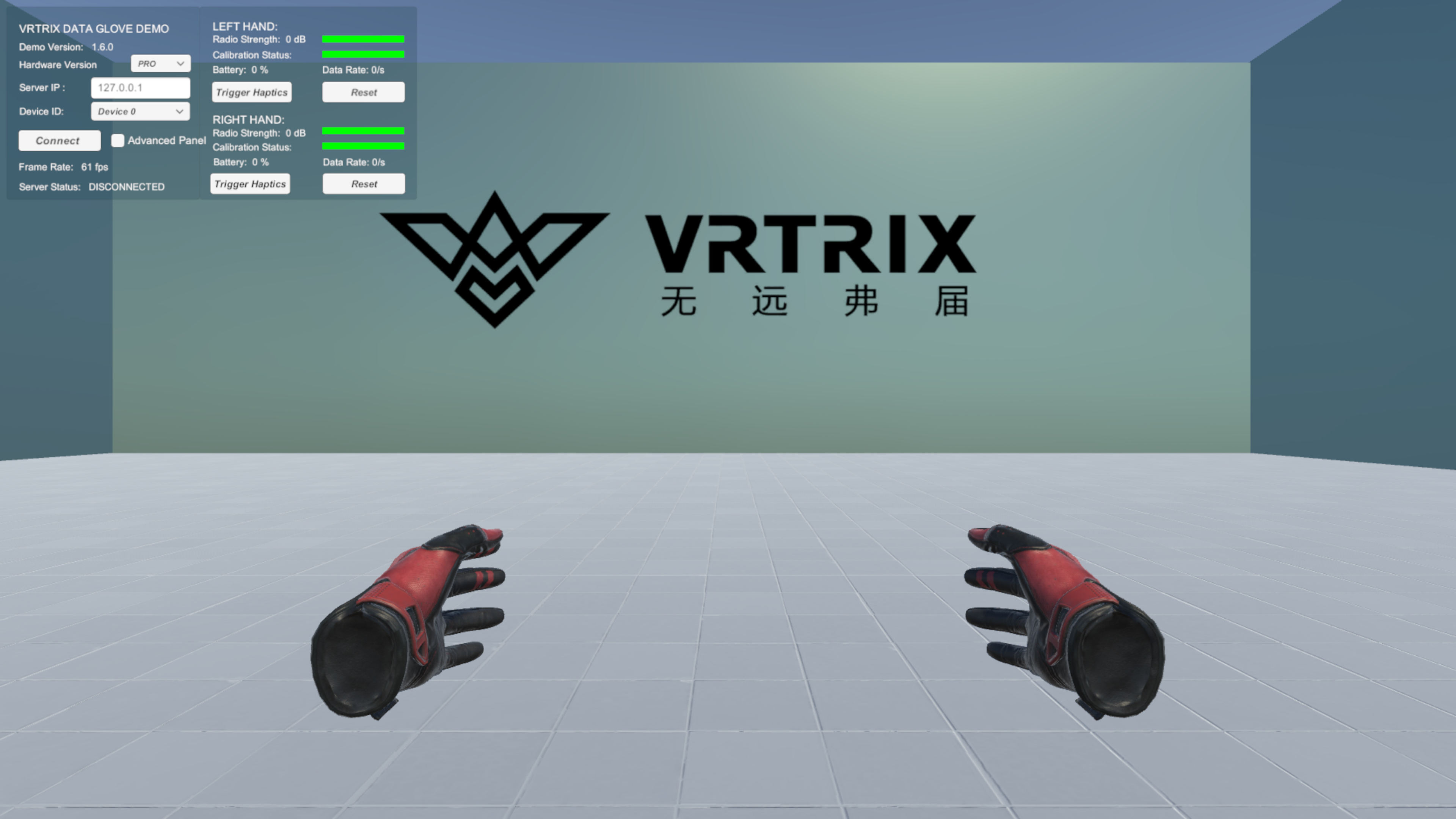
- After putting on the gloves, adjust the thumb joint and finger spacing. In the 3D view, select the "Advanced Panel" option to open the advanced settings and make the adjustments.
.png)
- The right side of the above picture shows the status bar of the data glove. From top to bottom, they are: an illustration of the wireless communication signal strength of the data glove, an illustration of the calibration level (which can be understood as the state of magnetic field interference), the percentage of remaining battery power, and the frame rate of data packets sent by the data glove per second. The "Trigger Haptics" button below represents triggering vibration, and the "Reset" button indicates resetting the direction of the glove in the 3D view to the front.
.png)
- After clicking and selecting "Advanced Panel", the data glove algorithm fine-tuning box shown in the above picture will appear. In this box, you can make minor adjustments to the current form of the data glove.
- "Unlock Yaw": This function unlocks the yaw angle of the data glove. When this option is selected, the function allowing the five fingers of the data glove to open can be activated. However, please note that after enabling this function, the glove must be kept away from magnetic objects, including but not limited to iron items, mobile phones, computer cases, speakers, etc.
- "Finger Spacing": When the function of opening the five fingers is not required, the angle between the fingers can be fixed. It can be adjusted slightly according to different models. The larger the angle setting, the greater the degree of finger opening.
- "Curved Spacing": This represents the distance between the fingers when making a fist. Generally, we prefer there to be a certain angle between the fingers when they are fully extended. However, when the fingers are in a fist position, they are usually in a close-together state. This parameter is used to adjust this state.
- "Thumb Proximal/Middle/Distal Offset": These represent the deviation values of the three joints of the thumb. They can be switched by the dropdown box. This deviation value is mainly determined by the deviation between the 3D model binding and the actual bones. Generally, adjusting only the Thumb Proximal Offset can make the thumb joints normal.
- "Reset Value": This is used to reset the deviation values of all joints of the thumb to their initial values.
- "Align Fingers": Due to variations in user hand shapes and assembly errors of the sensors, if you feel that the degree of finger bending during use is inconsistent, you can bring all five fingers together and straighten them, then click this button to perform calibration. This calibration is similar to the T-Pose calibration, except that this function calibrates the left and right hands separately, making it convenient for single-person operation.